GenerateMinimapTexture en
This page explains generated dungeon minimaps in two ways:
saving them as texture assets and showing them in a widget at runtime.
For the first pass, start by confirming that you can generate a texture asset in the editor.
After that, move on to runtime UI display and icon overlays.
- Generate minimap textures in the editor
- Display the minimap in UI at runtime
- Overlay icons when needed
- To generate a texture in the editor, you must have a dungeon generated immediately beforehand
- To show it at runtime, get the minimap object from
ADungeonGenerateActor - For easier debugging, confirm the texture first and add icons later
- QuickStart.en.md is complete
- You can generate a dungeon successfully
- You can preview from
Window > DungeonGenerator, or you already useADungeonGenerateActorin a level
Start by creating minimap textures that are saved into the Content Browser.
This is useful for checking the look and prototyping UI.
Minimap textures are created from the most recently generated dungeon data.
If you have not generated a dungeon yet, run Generate dungeon first.
The following buttons are available only when valid dungeon generation data exists.
Generate texture with sizeGenerate texture with scale
If the buttons are disabled, the dungeon may not have been generated successfully.

Use either button depending on what you want to control.
-
Generate texture with size
Use this when you want to decide the output size directly -
Generate texture with scale
Use this when you want to control output density instead
When you press the button, a texture asset is created in the ProceduralTextures folder in the Content Browser.

The minimap is generated as a separate texture for each floor.
This helps players understand multi-floor dungeons more easily.
Lower floors are shown in lighter colors.
If you generate the dungeon during gameplay, you can display the minimap directly in UI without saving texture assets.
After ADungeonGenerateActor generates the dungeon,
you can obtain a DungeonMinimapTextureLayer object.
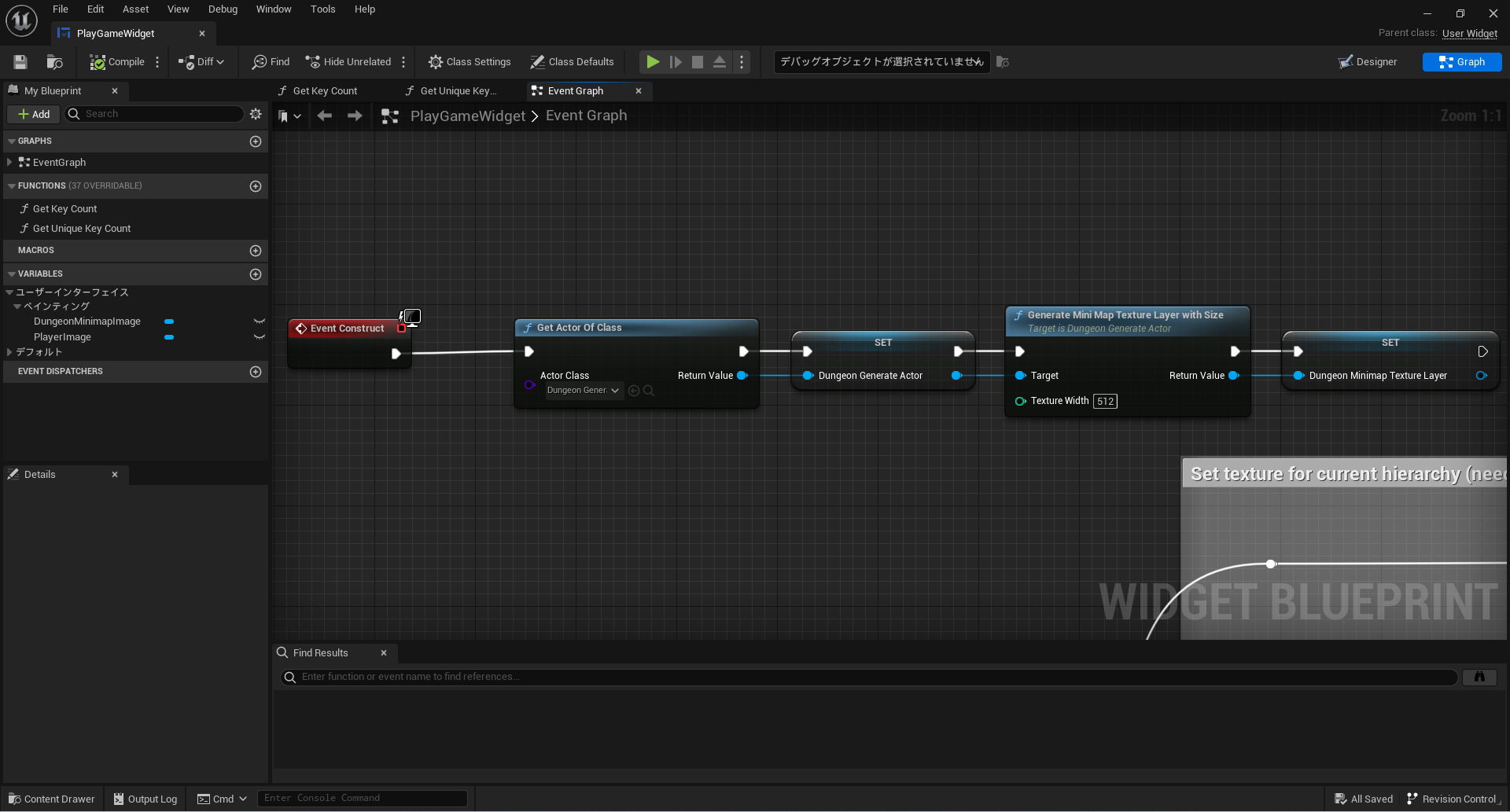
Use DungeonMinimapTextureLayer to get the texture that matches the player's current height.

Set the retrieved texture on a widget brush and display it.

Adding icons for the player or targets makes exploration easier.
Use DungeonIconWidget to help display these icons.
First, set the icon you want to display on the brush.


Use Register or Set to register the display location.
If the same ID already exists, it can update the existing icon.
Use Unregister when the icon is no longer needed.

- Pressing the texture generation button creates assets in
ProceduralTextures - Separate textures exist for separate floors
- The minimap changes to the correct floor based on player height
- Icons appear in the expected positions
-
Generate texture with sizeorGenerate texture with scaleis disabled
Make sure a dungeon was generated immediately beforehand - The texture was created, but nothing appears in the UI
Make sure the texture retrieved fromDungeonMinimapTextureLayeris actually assigned to the widget - The displayed floor is wrong
Recheck the logic that maps player height to floor selection - The icon does not appear
Recheck theRegister or SetID, display coordinates, and brush setup
For a concrete integration example, see Content/Widget/Main/PlayGameWidget in the sample project.