Install R
To download R, first click the “Download R for Windows” hyperlink. Then click the “Install R for the first time” hyperlink. Select “Download R 3.1.2 for Windows” to begin the download of the installation setup file R-3.1.2-win.exe. The R project and CRAN websites provide information and documentation pertaining to R, including installation instructions, technical documentation, FAQs, and much more.
Installing R entails the following:
-
Double-click the file R-3.1.2-win.exe to run the installation setup
-
Select the desired language (English), and click “OK"

-
Click “Next” to continue the setup

-
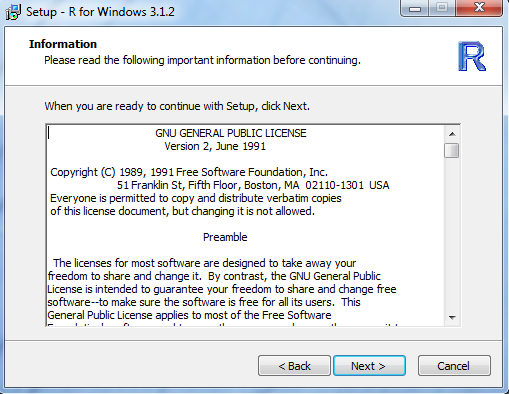
Click “Next” after reading the Public Licensing information
-
Select a location for the program installation (e.g., C:\ProgramFiles\R\R-3.1.2) and click “Next”

-
Select the components to be installed (all components can be selected) and then click “Next”

-
Click “Next” to leave the accepted defaults for the start-up options

-
Specify the location where the program’s shortcut in the Start Menu folder will reside (e.g., R) and click “Next”

-
Select which additional tasks are desired and click “Next”

-
The installation will begin and display an on-screen progress window

-
Click “Finish” when the installation is completed

-
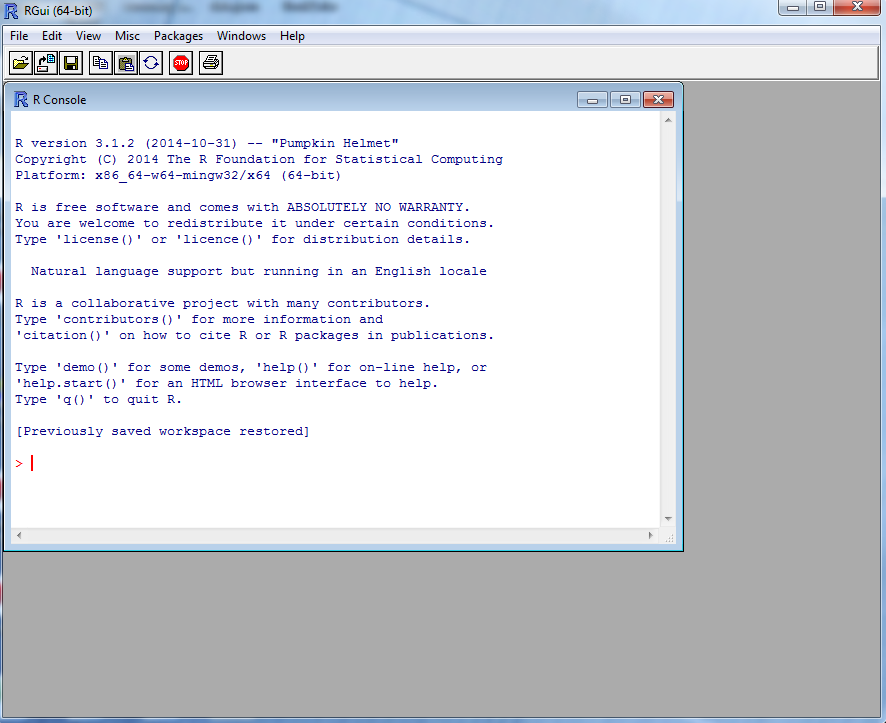
R will now have been successfully installed on the target machine. To confirm installation, look for and find the R shortcut, which should be available on the machine's desktop (R x64 3.1.2). Double-clicking the shortcut will open the RGui and console.