CD‐ROM Emulation
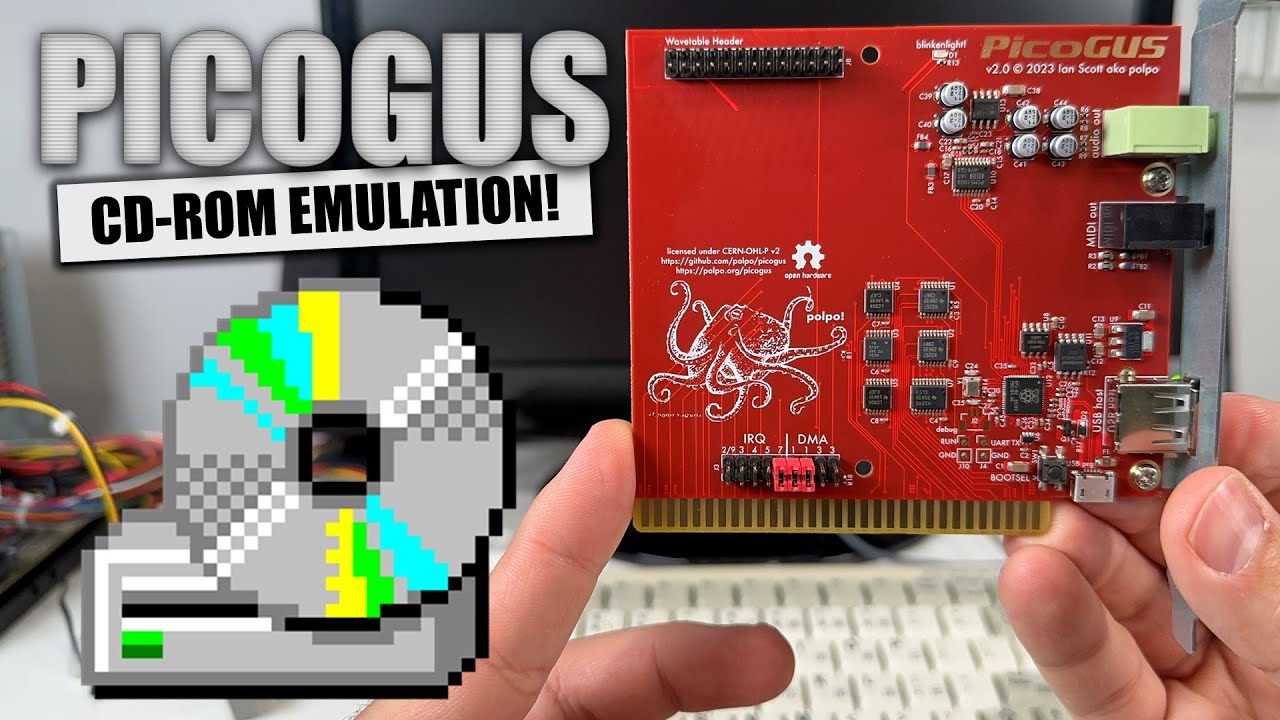
CD-ROM emulation on the PicoGUS emulates a Panasonic/MKE interface and drive and supports CD images in ISO or BIN/CUE stored on a USB drive plugged into the USB port on the PicoGUS. CD-ROM emulation has been tested in DOS and Windows 9x and CD audio playback is fully supported.
CD-ROM emulation is available in Sound Blaster and USB modes with PicoGUS firmware v3.0.0 and higher. Sound Blaster mode really pushes the limit of the RP2040: it mixes CD audio, SB DSP, and OPL sound while simultaneously supporting CD data and MPU-401 emulation. The emulated drive is approximately 2x speed in SB mode and 3x-4x speed in USB mode. CD audio playback works in both SB and USB modes. Disc images can be swapped on the fly with pgusinit, and multi-disc games are supported by removing and reinserting the USB drive to advance the current disc image.
Because CD-ROM emulation is only available in SB and USB modes, the PicoGUS has to be in one of those modes at system boot so the drivers can load correctly. You can save the mode to the card to ensure this by running pgusinit /mode usb /save or pgusinit /mode sb /save.
vswitchzero has a great video walkthrough on using PicoGUS's CD-ROM Emulation.
Use a good-quality fast USB drive. Some drives do not have good performance with the TinyUSB library used on PicoGUS and you will experience choppy/stuttering CD-ROM audio playback. If you experience this re-format the drive or try another brand. Only use "USB sticks" – larger drive enclosures are too power hungry and will trip the resettable fuse on the PicoGUS's USB port.
Only drives formatted with FAT32 are supported. exFAT is not supported. Freshly format the drive and keep it clear of other data to prevent file fragmentation – performance will degrade on highly fragmented disc images. Copy your drive images in either ISO or BIN/CUE format to the root of the USB drive – subdirectories are not supported. Up to 100 images per drive are technically supported, but performance may degrade as more images are added.
If you have a PicoGUS 2.0, just plug in your drive. USB hubs are supported (with the caveat that some cheap modern hubs don't fully support USB 1.1, which is the standard used on the RP2040). If you have a PicoGUS 1.x board, you will need to use a micro-B to A OTG cable or hub to plug in the USB drive. Use a powered OTG cable/hub to inject power or if you have a PicoGUS 1.2 board, close the USBPWR jumper to put power on the Pico's USB port.
PicoGUS features automatic image handling so you can manage images without a software utility. Once PicoGUS is on and in a mode supporting CD-ROM (either SB or USB mode), it will automatically mount the first disc image (sorted alphabetically) on the USB drive. If you pull the USB stick, it will eject the virtual disc and if you insert a new drive it will automatically mount the first image on that drive. If you insert the same USB drive, by default PicoGUS will mount the next disc image on the drive. This way you can put in the next disc for multi-CD games without leaving the game. Just make sure your disc images are named accordingly, for example:
Phantasmagoria (Disc 1).iso
Phantasmagoria (Disc 2).iso
Phantasmagoria (Disc 3).iso
[etc...]
To disable this automatic disc advance feature, run pgusinit /cdauto 0.
Images can also be listed and selected with pgusinit (even in a Windows 9x DOS prompt). To list all images on the currently inserted USB drive, run pgusinit /cdlist. It will show all images with an index number and an asterisk next to the currently mounted image.
To select a different image, run pgusinit /cdload n where n is the number next to the image you want to mount. If there is an error mounting the image (malformed cue sheet, improperly named bin file, corrupt iso, etc.), pgusinit will tell you. If you want to eject the currently mounted image and not mount a new image, run pgusinit /cdload 0.

PicoGUS emulates the Panasonic/MKE interface and has been tested in DOS and Windows 9x. By default, the emulated interface is on port 250h which can be changed with pgusinit /cdport xxx.
Download the recommended version of CDMKE.SYS. Install it in your config.sys with the line:
DEVICE=CDMKE.SYS /P:250 /Q
Change the /P: option if you've configured PicoGUS to use a different CD interface port. The /Q option tells CDMKE to not stop and ask to retry if it can't load the driver (nice if you reboot when your PicoGUS is in a mode without CD-ROM support). By default CDMKE will use the device name MSCD000 but that can be changed with the /D: option.
In your autoexec.bat, load MSCDEX:
MSCDEX /D:MSCD000
The MKEPanasonic CD-ROM driver built into Windows 95 and 98 is recommended and supported as of PicoGUS firmware v4.0.0. To install, open Control Panel and use the Add New Hardware wizard and say you want to select the hardware from a list. Select CD-ROM controllers:


Select "MKEPanasonic [Matsushita-Ko..." and "MKEPanasonic CD-ROM Drive".

After you have installed the driver, say no to the prompt to shut down your computer, because you will need to change the port configuration. Go into device manager and open the MKEPanasonic CD-ROM Drive and go to the Resources tab. There, change the IO port to 0250 - 0257 (or a different port range if you configured your PicoGUS to use a non-default CD interface port).

As mentioned above, PicoGUS is sensitive to the type of USB drive you use. Some drives will result in choppy/stuttering CD audio playback. Unfortunately the only way to fix this is to try reformatting or use a different drive.
PicoGUS only supports FAT32-formatted USB drives. exFAT is not supported for performance reasons.
PicoGUS does not support XA/Mode 2 CD-ROM images.
Using CD-ROM emulation in Sound Blaster mode really pushes the limits of the RP2040 microcontroller. CD-ROM drive speed is somewhat limited in SB mode, but USB mode does not have this limitation (with the caveat that you'll need a separate sound card!).