Show rendered UI previews on hover inside VS Code and Cursor.

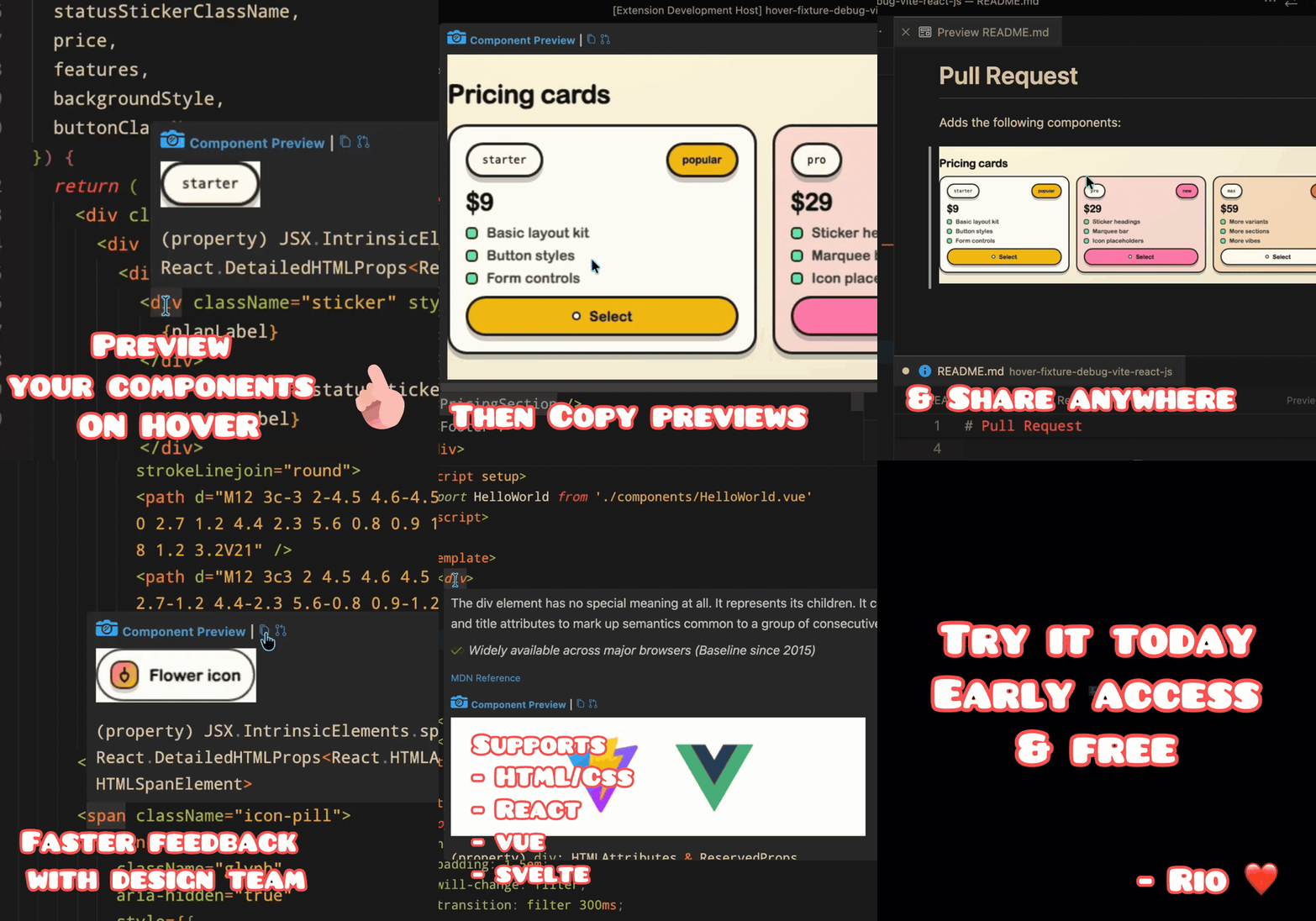
Component Preview lets you hover UI code and instantly see what that component looks like.
It is built for fast feedback while you code, especially when you are scanning unfamiliar files or trying to understand a UI quickly. In addition, it allows you to easily export previews for sharing (e.g. in pull requests)
| File type | Works out of the box | Recommended setup |
|---|---|---|
.html |
Yes | None |
.tsx / .jsx |
Yes | Optional plugin |
.vue |
Needs plugin | Vite plugin |
.svelte |
Needs plugin | Vite plugin |
Install Component Preview from the VS Code Marketplace (or Open VSX).
For .tsx, .jsx, .vue, and .svelte files, your app's dev server must be running for previews to work. The extension connects to it to render live components.
Vue and Svelte previews require the Vite plugin. It is also recommended for React projects for more accurate matching.
npm install -D vite-plugin-component-previewAdd it to your Vite config:
import { defineConfig } from "vite";
import react from "@vitejs/plugin-react";
import componentPreview from "vite-plugin-component-preview"; // add this

export default defineConfig({
  plugins: [
    react(),
    componentPreview(), // add this
  ],
});Set component-preview.devServerUrl in VS Code/Cursor settings.
How to set it:
- Open Settings
- Search for component-preview.devServerUrl
- Paste your dev URL (example:
http://localhost:5173)
Or add it directly in settings.json:
{
  "component-preview.devServerUrl": "http://localhost:5173"
}From the hover preview, you can now:
- Copy Preview Image (absolute file path)
- Save to Repo + Copy PR Markdown
The PR action saves the current preview image into your repo and copies a ready-to-paste Markdown snippet like:
File names include a useful label (hovered component/file), element details (like tag + source line/column), plus a timestamp.
You can customize the save folder with:
component-preview.prImageDir(default:.component-preview/previews)
- Make sure your app dev server is running.
- Hover again after the page loads.
- Set
component-preview.devServerUrlif your port is custom.
- Install the Vite plugin.
- Restart your app dev server.
- Save and hover again.
- Confirm the component is currently rendered in your running app.
Note: This app is still in early beta and being actively developed, so expect some rough edges. These will be smoothed out over time. You can submit an issue or feature request here: GitHub Issues
Usually no. React (.tsx/.jsx) works out of the box in most projects.
If preview is inconsistent, set component-preview.devServerUrl to your running app URL.
Yes, with the Vite plugin enabled.
Install:
npm install -D vite-plugin-component-previewThen add it to your Vite config and restart your dev server.
Component Preview is built for VS Code-compatible editors.
- VS Code
- Cursor
It is usable, but still in early beta. Expect occasional rough edges while coverage and reliability improve.
VS Code or Cursor.
Component Preview renders and stores preview images locally on your machine.
- Temporary preview captures are stored in the extension's local storage area and cleaned up automatically.
- If you use copy/persist features, additional preview images may be stored locally for reuse.
- These images can contain UI from your app (including internal or NDA-protected content).
If you are not comfortable with local preview-image storage, do not use this extension in sensitive projects. For highly sensitive or NDA-protected code/UI, review your local storage policy before enabling this workflow.
Feel free to reach out with any questions, feedback, or suggestions.
Made with ❤️ by Rio Edwards