When exploring and using various custom nodes, ComfyUI users often encounter a common pain point: many nodes rely on specific model files. When these nodes are uninstalled or no longer used, the associated model files are often forgotten and left in the local models directory, becoming "orphan models." These orphan models not only occupy valuable hard disk space but also make model management chaotic.
ComfyUI Model Cleaner aims to solve this problem. It is a utility tool designed for ComfyUI that helps you identify and clean up model files that are no longer in use due to node deprecation or project completion by intelligently analyzing your model library and workflows. This effectively frees up disk space and makes your model management more organized.
Scanning and detection are based on a comprehensive judgment of multiple factors, so accuracy cannot be guaranteed. Please operate with caution.
- 🔍 Intelligent Model Discovery: Accurately identifies single-file and directory models.
- 🔗 Multi-source Reference Detection: Extracts references from code, configurations, and documents.
- 🎯 Intelligent Matching Algorithm: Multi-level matching strategy to improve accuracy.
- 📊 Confidence Assessment: 0-100 point usage confidence score.
- 🌐 GitHub Enhancement: Optional repository information analysis, extracting references from READMEs and other documents.
- Automatically scans the ComfyUI models directory.
- Analyzes model usage in workflows and custom nodes.
- 🌐 Multi-language Support: Automatically detects ComfyUI language settings (currently supports Chinese and English, terminal debug information is always in Chinese).
- Preview Mode: View files to be deleted without actually deleting them.
- Backup Mode: Move files to a backup folder and record the original path.
- Recycle Bin Mode: Send files to the system recycle bin.
- Interactive selection interface within the node.
- Detailed scan reports and statistics.
- Real-time operation progress feedback.
-
Navigate to ComfyUI's custom_nodes directory:
cd ComfyUI/custom_nodes -
Clone this repository:
git clone https://github.com/blueraincoatli/ComfyUI-Model-Cleaner.git
-
Install dependencies (if needed):
cd ComfyModelCleaner pip install send2trash -
Restart ComfyUI.
-
Add Model Scanner Node
- Add the "🔍 Model Scanner" node in ComfyUI.
-
Configure Scan Options
- Select scan mode (see "Scan Modes" section below for details).
- Set confidence threshold (recommended 60-80%, see "Interpreting Results" below for details).
- Select model types to scan.
-
Run Scan
- Execute the workflow to start model analysis.
-
View Results
- Check the scan report for unused models.
-
Clean Up Models
- Connect the scanner output to the "📋 Interactive Model Cleaner" node.
- Select models to delete within the node.
- Choose a cleanup mode and execute.
Function: Analyzes model usage.
- Scans all models in the ComfyUI installation directory.
- Analyzes workflow files and custom node code.
- Generates a usage confidence score for each model.
- Outputs a detailed analysis report and a list of unused models.
Main Parameters:
scan_mode: Scan mode (see "Scan Modes" section below for details).confidence_threshold: Confidence threshold (0-100%).- Switches for various common model types (checkpoints, LoRAs, etc.).
include_custom_node_dirs: Include custom node directories (V2.0).github_analysis: Enable GitHub repository analysis (V2.0).exclude_core_dirs: Exclude core system directories (V2.0).
Function: Interactive model cleanup.
- Displays a model selection interface within the node.
- Supports multi-selection of models for batch operations.
- Provides safe cleanup options.
- Generates detailed operation reports.
Main Parameters:
action_mode: Operation mode (dry_run/move_to_backup/move_to_recycle_bin).backup_base_folder: Backup folder path.
- normal Mode ⭐ Recommended: Uses the V2.0 intelligent engine, provides detailed confidence analysis, and more accurate results.
- GitHub Enhanced Mode: Includes analysis of the node's GitHub repository, extracting references from READMEs and other documents for the most comprehensive analysis results.
- 80: Conservative (recommended for beginners).
- 70: Balanced (recommended for daily use).
- 50: Aggressive (for experienced users).
By default, scanning is skipped for the following model types:
- Checkpoints: Main AI model files.
- LoRAs: Low-Rank Adaptation models.
- Embeddings: Text embedding models.
- VAE: Variational Autoencoder models.
- ControlNet: Control Network models.
- Upscale Models: Image upscaling models.
- Style Models: Style transfer models.
- CLIP: Contrastive Language-Image Pre-training models.
- Dry Run Mode: Only displays files that would be deleted, without actually deleting them.
- Move to Backup Mode: Moves files to a backup folder and creates a path record file.
- Move to Recycle Bin Mode: Sends files to the system recycle bin (requires the
send2trashlibrary).
- 80-100%: Very High - Very likely unused (safe to delete).
- 60-79%: High - Likely unused (recommend verifying before deleting).
- 40-59%: Medium - Uncertain status (requires manual verification).
- 20-39%: Low - Possibly in use (recommend keeping).
- 0-19%: Very Low - Very likely in use (recommend keeping).
- Exact: Exact match (most reliable).
- Partial: Partial match (fairly reliable).
- Fuzzy: Fuzzy match (requires verification).
- Path: Path match (requires verification).
- Backup Important Files: Always back up before deleting.
- Verify Results: Manually check low-confidence models.
- Test Workflows: Test common workflows after deletion.
- Process in Batches: Do not delete too many files at once.
- Newly Installed Models: May not have been detected by reference scanning yet.
- Dynamically Loaded Models: Some nodes may load models dynamically.
- External References: Models might be used by other tools.
Each model receives an "unused confidence" score. Please refer to the "Unused Confidence Levels" above for interpretation.
- Automatically creates timestamped backup folders.
- Generates path record files containing all original path information.
- Supports manual restoration of files to their original locations.
- Preview all operations before actual deletion.
- Displays file sizes and potential space savings.
- Groups files by directory for easy checking.
- Select "github enhanced" mode for the first scan. It will take longer but will build a cache to speed up subsequent scans.
- Set the confidence threshold to 80%.
- Enable all relevant directories.
- Preview Before Operating: Always use preview mode to check results.
- Test with Small Batches: Start by selecting a small number of files for testing.
- Carefully review the results report.
- Cache can usually be used to speed things up.
- For a full scan, enable the
clean_cacheoption. - Adjust the confidence threshold based on experience.
- Backup Important Models: Use backup mode for important models.
- Enable "GitHub Enhanced" mode.
- Include all directory types.
- Set a lower confidence threshold.
- Manually verify uncertain results.
ComfyModelCleaner currently supports the following languages:
- English (en) - Default language
- 中文 (zh) - Simplified Chinese
How Language Settings Work:
- Automatic Detection: The plugin attempts to automatically detect the interface language you have set in ComfyUI. It does this by reading the
Comfy.Localesetting in ComfyUI's user configuration file (ComfyUI/user/default/comfy.settings.json).- For example, if your ComfyUI is set to Chinese and
Comfy.Localein this configuration file is"zh"or"zh-CN", ComfyModelCleaner will automatically switch to the Chinese interface after the next ComfyUI restart.
- For example, if your ComfyUI is set to Chinese and
- Environment Variable Fallback: If reading the language setting from the configuration file fails, the plugin will try to read the
COMFYUI_LANGoperating system environment variable (e.g., set tozhoren). - Default Language: If neither of the above methods determines the language, the plugin will default to the English interface.
Contributing Translations:
We warmly welcome contributions for other languages to ComfyModelCleaner! You can do so in the following ways:
- In the
translationsdirectory, copy an existingen.jsonorzh.jsonfile and rename it to your target language code (e.g.,ja.jsonfor Japanese,ko.jsonfor Korean). - Translate all the strings in the new JSON file.
- Add your language code and corresponding JSON file name to the
LANGUAGESdictionary in thecore/i18n.pyfile. - Submit a Pull Request with your changes.
Scanner did not find unused models
- Lower the confidence threshold to 30-50%.
- Ensure the correct model types are selected.
- Clear the cache and rescan.
Models incorrectly marked as unused
- Check if newly installed custom nodes are using these models.
- Manually verify model usage before deletion.
- Check for dynamic loading or external references.
Cleanup operation failed
- Check file permissions, ensure write access.
- Ensure the backup folder absolute path is set.
- Verify that model files are not currently in use by ComfyUI.
In-node interface unresponsive
- Refresh the browser page.
- Restart ComfyUI.
- Check the browser console for error messages.
Q: Scan is very slow (V2.0)
A: Try disabling GitHub analysis or use normal mode. Ensure the clean_cache option is not enabled to use cache mode. Make sure not too many unnecessary directories are selected.
Q: Results are inaccurate (V2.0) A: "Orphan models" caused by deleting nodes are indeed difficult to accurately identify. Screening is complex and challenging. This scan only provides a reference; always manually verify the results!
Q: Some models are not found (V2.0) A: Ensure relevant directories are enabled. Check if model file extensions are correctly recognized by ComfyUI or related nodes.
Q: Too many false positives (V2.0) A: Increase the confidence threshold, use more conservative settings. Prioritize models with high "unused confidence levels."
- Check the detailed logs output in the ComfyUI console.
- Verify the scan configuration is correct.
- Validate the ComfyUI directory structure.
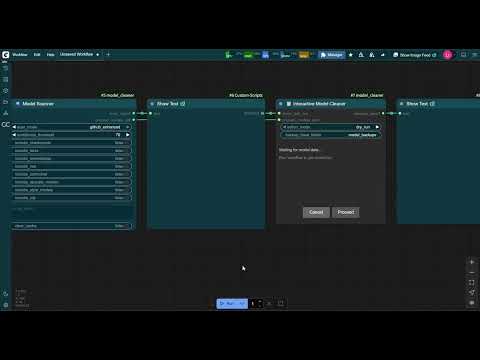
[Model Scanner] → [show_text](scan report) →[Interactive Model Cleaner] → [show_text](clean report)
                →[unused_models_list]→
- Model Scanner analyzes all models. Connect a
show_textnode to display the scan report. Note that the output must be connected to thescan_reportinput of theInteractive Model Cleanernode, otherwise the scan result cannot be displayed before the workflow completes. - Connect the
unused_models_listoutput to the Interactive Model Cleaner. - Select models to delete in the cleaner node.
- Choose an operation mode and execute cleanup.
Contributions are welcome! Please feel free to submit Pull Requests. Feedback and suggestions via Issues are also welcome.
This project is licensed under the MIT License - see the LICENSE file for details.
This tool modifies your model files. Always back up important data before use. The author is not responsible for any data loss.
Enjoy a smarter model management experience! 🎉