




This project is not endorsed by, directly affiliated with, maintained, authorized, or sponsored by Sinapsi
HA Custom Component to integrate data from Sinapsi Alfa device. Tested on my Alfa to monitor the power/energy consumption and photovoltaic power/energy production directly from the energy provider's OpenMeter 2.0.
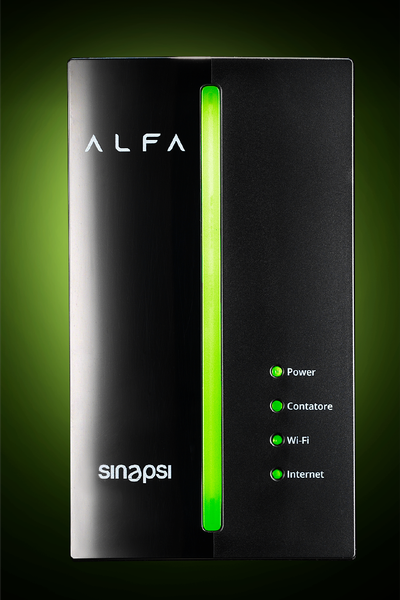
Alfa is a great product, it provides official measurements, and it provides local API to get the data (for now it's through ModBus).
So finally here we are with the first official version of the HA custom integration for Alfa devices. :)
- Installation/Configuration through Config Flow UI
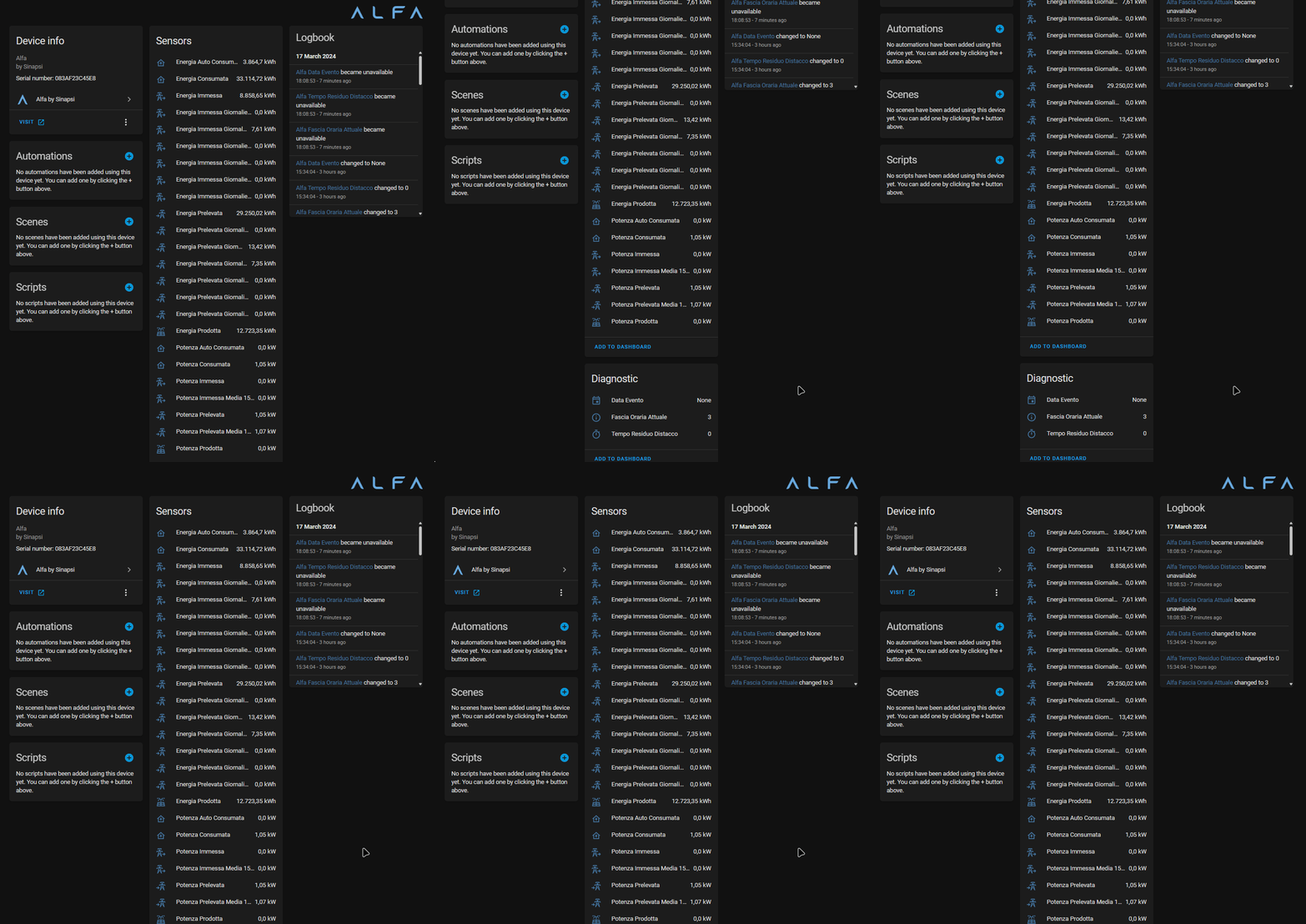
- Sensor entities for all data provided by the device
- Translated sensor names: Sensor names displayed in your Home Assistant language (supports German, English, Spanish, Estonian, Finnish, French, Italian, Norwegian, Portuguese, and Swedish)
- Options flow: Adjust polling interval, connection timeout, and repair notification settings at runtime
- Reconfigure flow: Change device name, host, port, and skip MAC detection
- Repair notifications: Connection issues are surfaced in Home Assistant's repair system with configurable threshold
- Recovery notifications: Detailed timing info (downtime, script execution) when device recovers
- Device triggers: Automate based on device connection events (unreachable, not responding, recovered)
- Recovery script: Optionally execute a script when connection failures reach the threshold
- Diagnostics: Downloadable diagnostics file for troubleshooting
- All changes apply immediately without Home Assistant restart
This integration uses a fully async Modbus implementation via ModbusLink
to communicate with the Sinapsi Alfa device:
- Async I/O: All Modbus operations are fully async, preventing Home Assistant event loop blocking
- Connection Management: Connections use configurable timeouts with automatic retry on failure
- Protocol Error Recovery: Early abort when multiple protocol errors occur to prevent cascade delays
- Graceful Error Handling: Custom exceptions (
SinapsiConnectionError,SinapsiModbusError) provide clear error context - Repair Notifications: Connection issues are surfaced in Home Assistant's repair system after repeated failures
The Sinapsi Alfa device only supports one Modbus TCP client at a time.
Many users have the Sinapsi-provided YAML package
(alfa-ha-modbus-configuration.yaml) installed, which uses Home Assistant's
built-in Modbus integration. If you install this custom integration without
removing that package, both integrations will try to connect to the same
device, causing connection failures.
Before installing this integration:
- Remove or rename the Sinapsi YAML package file
(
alfa-ha-modbus-configuration.yaml) from yourpackagesfolder - Restart Home Assistant
- Then proceed with installing this integration
The integration will detect this conflict and show a clear error message if the built-in Modbus integration is still configured for the same device.
This integration is available in [HACS] official repository. Click this button to open HA directly on the integration page so you can easily install it:

- Either click the button above, or navigate to HACS in Home Assistant and:
- 'Explore & Download Repositories'
- Search for 'Alfa by Sinapsi'
- Download
- Restart Home Assistant
- Go to Settings > Devices and Services > Add Integration
- Search for and select 'Alfa by Sinapsi' (if the integration is not found, do a hard-refresh (ctrl+F5) in the browser)
- Proceed with the configuration
Download the source code archive from the release page. Unpack the archive and copy the contents of custom_components folder to your home-assistant config/custom_components folder. Restart Home Assistant, and then the integration can be added and configured through the native integration setup UI. If you don't see it in the native integrations list, press ctrl-F5 to refresh the browser while you're on that page and retry.
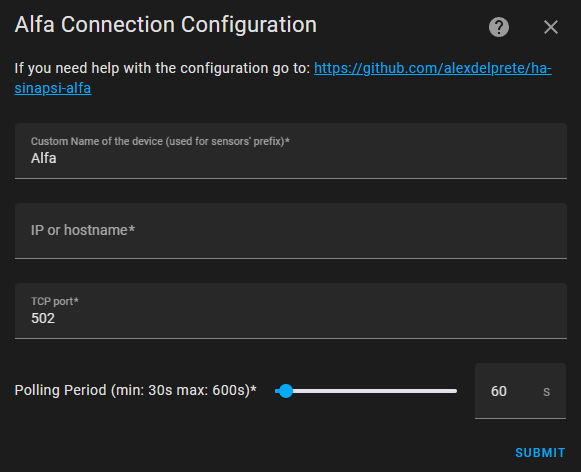
Configuration is done via config flow right after adding the integration.
During initial setup, you configure all settings:
- Device name: Custom name for the device (used as prefix for sensor names)
- IP/Hostname: IP address or hostname of the Alfa device
- TCP port: Modbus TCP port (default: 502)
- Polling interval: How often to read data from the device (30-600 seconds)
- Connection timeout: How long to wait for device response (5-60 seconds)
- Skip MAC detection: Enable for VPN connections (uses host-based ID)
After installation, you can adjust runtime settings without restart:
- Go to Settings > Devices & Services > Alfa by Sinapsi
- Click Configure to open the options dialog
- Adjust the available options:
- Recovery script: Script to execute when failure threshold is reached
- Enable repair notifications: Toggle repair issue creation on/off
- Failures before notification: Number of failures before creating repair issue (1-10)
- Polling interval: How often to read data (30-600 seconds)
- Connection timeout: How long to wait for response (5-60 seconds)
- Click Submit - changes apply immediately
To change the device name, host, port, or skip MAC detection:
- Go to Settings > Devices & Services > Alfa by Sinapsi
- Click the three-dot menu (⋮) on the integration card
- Select Reconfigure
- Update the settings and click Submit
Note: Entity IDs are based on the device serial number, so changing the device name or host will not affect your historical data or automations.
The integration provides device triggers that allow you to create automations based on device connection events. These triggers fire when the Sinapsi Alfa device experiences connectivity issues or recovers from them.
| Trigger | Description |
|---|---|
| Device unreachable | Fires when the device cannot be reached (network/connection issue) |
| Device not responding | Fires when Modbus communication fails |
| Device recovered | Fires when the device starts responding again after a failure |
- Go to Settings > Automations & Scenes > Create Automation
- Click Add Trigger and select Device
- Select your Sinapsi Alfa device
- Choose from the available triggers (e.g., "Device unreachable")
Get notified when your Sinapsi Alfa device goes offline and comes back online:
automation:
  - alias: "Sinapsi Alfa Device Offline Alert"
    trigger:
      - platform: device
        domain: sinapsi_alfa
        device_id: YOUR_DEVICE_ID
        type: device_unreachable
    action:
      - service: notify.mobile_app
        data:
          title: "Sinapsi Alfa Offline"
          message: "The Sinapsi Alfa device is unreachable. Check network connection."

  - alias: "Sinapsi Alfa Device Recovered"
    trigger:
      - platform: device
        domain: sinapsi_alfa
        device_id: YOUR_DEVICE_ID
        type: device_recovered
    action:
      - service: notify.mobile_app
        data:
          title: "Sinapsi Alfa Online"
message: "The Sinapsi Alfa device is back online and responding."You can configure a Home Assistant script to run automatically when connection failures reach the configured threshold. This is useful for automated recovery actions like restarting a smart plug that powers the device.
- Go to Settings > Devices & Services > Alfa by Sinapsi
- Click Configure to open the options dialog
- Select a script from the Recovery script dropdown
- The script will run when the failure threshold is reached
When the recovery script is executed, it receives these variables:
| Variable | Description |
|---|---|
device_name |
Device name as configured in the integration |
host |
IP address or hostname of the device |
port |
TCP port (usually 502) |
serial_number |
Device serial number |
mac_address |
Device MAC address |
failures_count |
Number of consecutive failures |
Create a script that restarts a smart plug and sends a notification:
script:
  alfa_recovery:
    alias: "Alfa Recovery Script"
    sequence:
      - service: notify.mobile_app
        data:
          title: "Alfa Recovery"
          message: >
            Device {{ device_name }} at {{ host }}:{{ port }} failed
            {{ failures_count }} times. Restarting power...
      - service: switch.turn_off
        target:
          entity_id: switch.alfa_smart_plug
      - delay:
          seconds: 10
      - service: switch.turn_on
        target:
entity_id: switch.alfa_smart_plugWhen the device recovers from a failure, the integration creates a persistent repair notification with detailed timing information:
- Failure started: When the issue began
- Script executed: When the recovery script ran (if configured)
- Recovery time: When the device became responsive again
- Total downtime: Duration of the outage (e.g., "5m 23s")
These notifications appear in Settings > System > Repairs and require user acknowledgment to dismiss.
The Sinapsi Alfa integration enables several energy monitoring use cases:
Monitor your home's energy flow in real-time using the power sensors:
- Power Imported (
potenza_prelevata): Current power consumption from grid - Power Exported (
potenza_immessa): Current power exported to grid (solar) - Power Produced (
potenza_prodotta): Current solar production - Power Consumed (
potenza_consumata): Total household consumption - Power Self-Consumed (
potenza_auto_consumata): Solar power used directly
Track energy consumption by Italian time bands (F1-F6) for accurate billing:
- F1: Peak hours (Mon-Fri 8:00-19:00)
- F2: Mid-peak hours
- F3: Off-peak hours (nights, weekends, holidays)
Enable the daily time band sensors in the entity settings to track consumption per band.
Add the integration's sensors to the HA Energy Dashboard for long-term tracking:
- Go to Settings > Dashboards > Energy
- Add
Energia Importataas Grid consumption - Add
Energia Esportataas Return to grid - Add
Energia Prodottaas Solar production
automation:
  - alias: "Solar Surplus Alert"
    trigger:
      - platform: template
        value_template: >
          {{ states('sensor.alfa_potenza_prodotta') | float(0) >
             states('sensor.alfa_potenza_consumata') | float(0) }}
        for:
          minutes: 5
    action:
      - service: notify.mobile_app
        data:
          title: "Solar Surplus"
          message: >
            Producing {{ states('sensor.alfa_potenza_prodotta') }} kW,
            consuming {{ states('sensor.alfa_potenza_consumata') }} kW.
Good time to run high-power appliances!automation:
- alias: "Daily Energy Report"
trigger:
- platform: time
at: "23:55:00"
action:
- service: notify.mobile_app
data:
title: "Daily Energy Report"
message: >
Today's grid import: {{ states('sensor.alfa_energia_prelevata') }} kWh
Solar production: {{ states('sensor.alfa_energia_prodotta') }} kWh
Self-consumption: {{ states('sensor.alfa_energia_auto_consumata') }} kWhautomation:
- alias: "Start Dishwasher on Solar"
trigger:
- platform: numeric_state
entity_id: sensor.alfa_potenza_prodotta
above: 2.0 # kW
for:
minutes: 10
condition:
- condition: state
entity_id: input_boolean.dishwasher_queued
state: "on"
action:
- service: switch.turn_on
target:
entity_id: switch.dishwasher
- service: input_boolean.turn_off
target:
entity_id: input_boolean.dishwasher_queued- Single device per integration: Each config entry supports one Alfa device. To monitor multiple devices, add the integration multiple times
- Italian market focus: Sensor names and time bands (F1-F6) are specific to the Italian electricity market
- Modbus TCP only: The integration communicates via Modbus TCP; serial connections are not supported
- No write operations: The integration only reads data; it cannot control the device
- MAC detection on VPN: MAC address detection may fail over VPN connections. Enable "Skip MAC detection" during setup to use host-based device identification instead
- Polling-based updates: Data is fetched at the configured interval (30-600 seconds); real-time updates are not available
If you're experiencing issues, enable debug logging to help diagnose the
problem. Add this to your configuration.yaml:
logger:
  default: info
  logs:
    custom_components.sinapsi_alfa: debug
After adding this, restart Home Assistant for the changes to take effect.
The standard Settings > System > Logs page only shows warnings and errors by default. To get the complete debug log with all diagnostic information:
- Enable debug logging as shown above and restart Home Assistant
- Reproduce the issue you're experiencing
- Go to Settings > System > Logs
- Click the three-dot menu (⋮) in the top-right corner
- Select Download full log
- This downloads the complete
home-assistant.logfile with ALL debug entries
Log files are stored in your Home Assistant config directory:
config/home-assistant.log- Current log fileconfig/home-assistant.log.1- Previous log (rotated)
Access methods by installation type:
| Installation | How to Access |
|---|---|
| Home Assistant OS | Use the File Editor or SSH & Web Terminal add-on |
| Home Assistant Container | docker exec -it homeassistant cat /config/home-assistant.log |
| Home Assistant Core | Direct file access in your config directory |
For live debugging, use SSH or Terminal to watch logs in real-time:
# Filter for sinapsi_alfa entries only
tail -f /config/home-assistant.log | grep sinapsi_alfa

# Or view the last 500 lines
tail -n 500 /config/home-assistant.log | grep sinapsi_alfa- The web UI logs page filters out debug-level messages by default
- Debug entries are only visible in the downloaded/raw log file
- After troubleshooting, consider removing the debug configuration to reduce log file size
- Log files rotate automatically; capture logs soon after reproducing an issue
When opening an issue, please include:
- Diagnostic file: Download from Settings > Devices & Services > Alfa by Sinapsi > three-dot menu (⋮) > Download diagnostics
- Home Assistant version (Settings > About)
- Integration version (Settings > Devices & Services > Alfa by Sinapsi)
- Debug logs with timestamps showing the error
- Network setup (local network, VPN, firewall, etc.)
- Steps to reproduce the issue
The diagnostic file contains sanitized device information and configuration that helps identify issues quickly. Sensitive data like IP addresses and MAC addresses are automatically redacted.
This project uses a comprehensive test suite with 98% code coverage:
# Install development dependencies
pip install -e ".[dev]"

# Run tests with coverage
pytest tests/ --cov=custom_components/sinapsi_alfa --cov-report=term-missing -v

# Run linting
ruff format .
ruff check . --fix
CI/CD Workflows:
- Tests: Runs pytest with coverage on every push/PR to master
- Lint: Runs ruff format, ruff check, and ty type checker
- Validate: Runs hassfest and HACS validation
- Release: Automatically creates ZIP on GitHub release publish
If you like this integration, I'll gladly accept some quality coffee, but please don't feel obliged. :)

