This repository contains my NixOS system configurations.
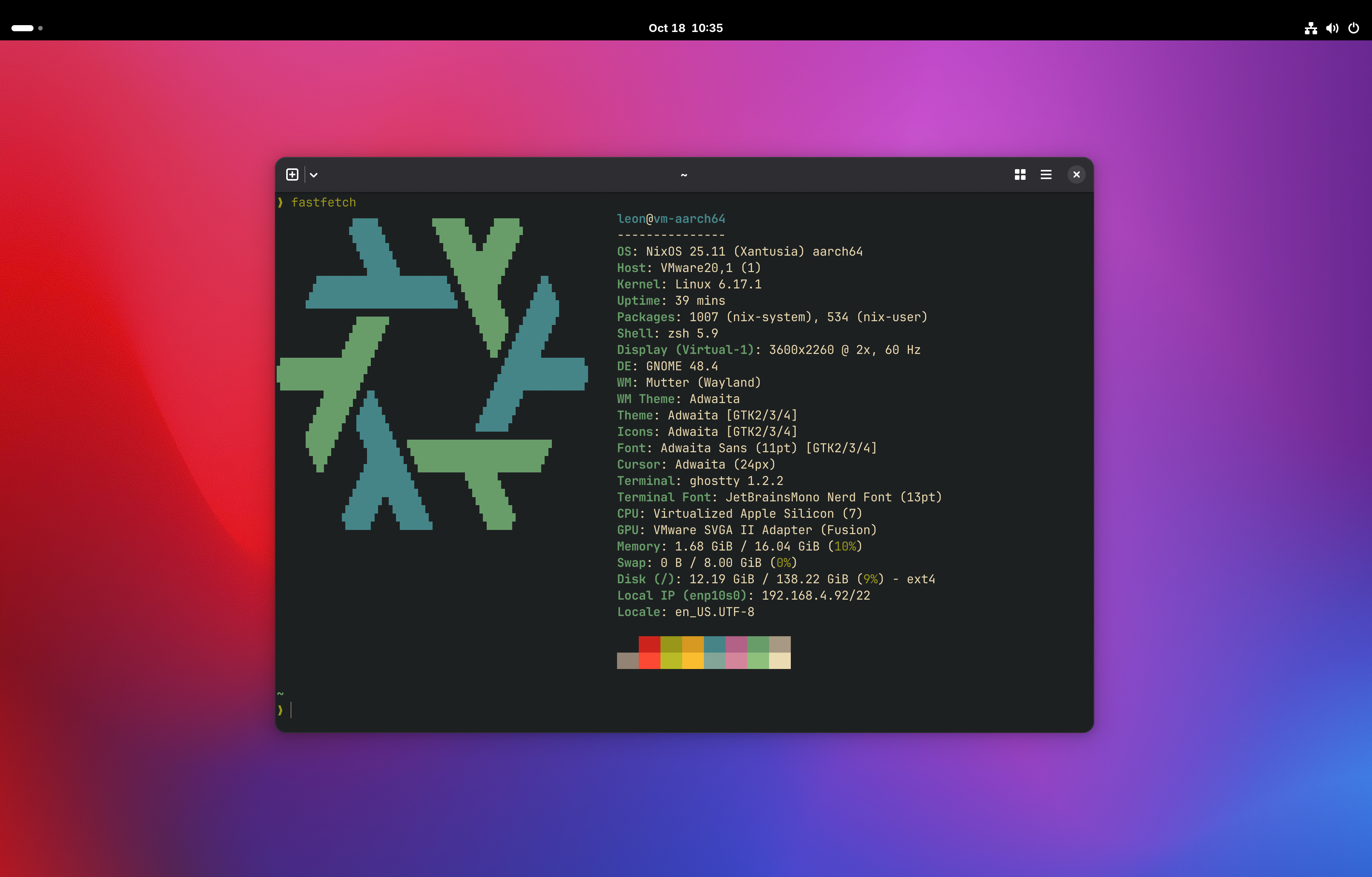
I currently manage 2 hosts, my framework desktop, and various aarch64 VMs running on Apple silicon via vmware fusion. Each of these machines is managed via flakes, and share configurations.
My bootstrap script draws inspo from Mitchell Hashimoto's NixOS configs: https://github.com/mitchellh/nixos-config/.
I run NixOS from my Mac machines through VMware Fusion.
First we'll grab the minimal NixOS installer from here.
In VMware Fusion, we'll create our boot system with the following configurations:
- Name the machine accordingly. I usually go with
NixOS. - Set CPU cores to about half available, and memory to about half - 2/3s. Whatever feels comfortable, this can be tweaked.
- Use bridged networking. NAT networking is preferred, but there is an issue DNS currently.
- Set hardrive to
nvme, and give it at least 150 GB. Note, my particular M4 Max machine has nvme drives, but other machines might have different types of drives -- you should confirm this in your system report. You would need to modify the Makefile accordingly for different SSD types because they would be identified differently for the partioning. - Enable graphics acceleration and use full retina display for diaplay settings.
- Remove extra configs like the sounds card, video, etc.
Then boot!
First, we need to find the IP of the machine we're setting up. From the booted machine, we'll set the root password:
sudo su
passwd
Make a note of the root password, and keep it simple. We'll enter it multiple times throughout the bootstrapping process.
Grab the IP with:
ifconfig
On the Mac terminal, in the shell where I will run all the bootstrap commands, set the NIXADDR IP address to the IP from the VM:
export NIXADDR=<IP>
To get the initial system setup, run our pre bootstrap set:
make vm/bootstrap0
This will create the partitions and mount the relevant disks.
Next, we'll want to run the actuall bootstrap script with:
make vm/bootstrap
Before transferring secrets and making them accessible under the primary user (leon) for me, I need to set the password for the user. I go back to the VM now, and login as root with the root password I set earlier. Then I run the following to set the password for my main user:
sudo passwd leon
Once the password is set, I can come back to my Mac terminal and enter that password to the prompt to continue transferring the secrets.
One the script is done, I can go back to the VM that is rebooting, and it will open me up to my environment!
- If your mouse is offset, under your VM's mouse/keyboard settings, enable
Always optimize mouse for games.