

Reads data files containing polygons and outputs the co-ordinates and diameter (and optionally points of the circle) of maximum inscribed circles to be contained within the digitized polygons.
To run on windows download the Maximum-Inscribed-Circle.exe from the Latest release and copy to your working folder. For other OSs follow the instructions in Run python code or Build.
Follow the instructions in the Guide for an example of the full process, using GEM4D to create the polygons.
This program can automatically process the following output formats as inputs:
- GEM4D
.csvfrom measure lines - Leapfrog 3D
.csvv1.2 - Maptek Vulcan
.arch_dpolygon file - SimpleFormat
.csvcustom format specified below
The following formats can be automatically processed, but have no reliable identifiers requiring Auto to be selected from the dialogue box after opening the file/s:
- Deswik
.csvoutput, with the optionInsert empty line after each polylineselected and no other attributes added before or in between the co-ordinates - Maptek Vulcan
.csvexport to ASCII, with anyObject Headerselected and no other attributes added before or in between theX,Y,Z Fieldco-ordinates
The following formats need to have their columns and/or delimiters manually selected by selecting Manual from the dialogue box:
- GEOVIA Surpac
.strspecifying the first column as ID and subsequent columns as Y, X, and Z (Note: order) - Micromine
.strchanging the delimiter toWhitespace, the first 3 columns as the X, Y and Z co-ordinates and the last column as ID
Using the Auto option, the program can also attempt to read other csv files if the first 3 numbers in a line are the X,Y and Z co-ordinates and the polygons are separated by non-numerical lines.
If you would like a new format to be added to the list, submit an issue with an example file on the Issues page or email king.dm49@gmail.com.
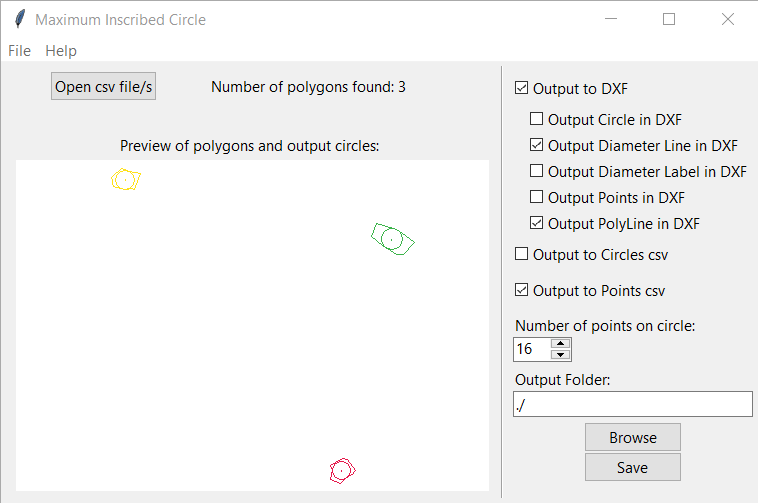
The program then shows a preview of the imported polygons and their maximum inscribed circles that will be saved.
The following output options can be specified and will output files to the folder specified (The default output folder "./" is the folder that the program is running in):
Output to DXFwill output a file calledcircles.dxf, with each of the circles on a separate numbered layer, starting atCircle0.Output Circle in DXFadds the maximum inscribed circles defined as circles to the DXF file.Output Diameter Line in DXFadds diameter lines to the DXF file.Output Diameter Label in DXFadds diameter labels to the DXF file.Output Points in DXFadds the maximum inscribed circles approximated as points to the DXF file (Number of points is specified by theNumber of points on circlebox below).Output PolyLine in DXFadds the maximum inscribed circles approximated as polylines to the DXF file (Number of points is specified by theNumber of points on circlebox below).
Output to Circles CSVwill output a file calledcircles.csv, containing the centre point and diameter of each maximum inscribed circle.Output to Points CSVwill output a file calledpoints.csv, containing the points defining a polygon approximation of each maximum inscribed circle.Number of points on circlespecifies the number of points used to approximate the circle for both thePoints CSVand theOutput Points in DXFoutputs.
The Circles CSV output file contains the centre point and diameter of each maximum inscribed circle in the following format:
circle1X,circle1Y,circle1Z,circle1Diameter
circle2X,circle2Y,circle2Z,circle2Diameter
circle3X,circle3Y,circle3Z,circle3Diameter
The Points CSV output file contains the points defining each maximum inscribed circle in the following format, with a blank line separating each circle:
circle1Point1X,circle1Point1Y,circle1Point1Z
circle1Point2X,circle1Point2Y,circle1Point2Z
circle1Point3X,circle1Point3Y,circle1Point3Z

circle2Point1X,circle2Point1Y,circle2Point1Z
circle2Point2X,circle2Point2Y,circle2Point2Z

The old console functionality can still be found in the console-version branch, if desired.
The SimpleFormat format is a CSV file with the identifier text SimpleFormat at the start of the file, comma separated X,Y,Z co-ordinates for each point, and a blank line separating each polygon, in the following format:
SimpleFormat
poly1Point1X,poly1Point1Y,poly1Point1Z
poly1Point2X,poly1Point2Y,poly1Point2Z
poly1Point3X,poly1Point3Y,poly1Point3Z
poly1Point4X,poly1Point4Y,poly1Point4Z

poly2Point1X,poly2Point1Y,poly2Point1Z
poly2Point2X,poly2Point2Y,poly2Point2Z
poly2Point3X,poly2Point3Y,poly2Point3Z
Requires Python 3.6 or above.
Run the following in a console to install the required packages (replace python3 with python if using Windows):
python3 -m pip install ezdxf
Either download and extract the repository zip file or just main.py and polylabel.py (and optionally exampleData.csv), and either double-click main.py if using Windows or run the following in a console to start the program:
python3 main.py
(Note: as of writing, only works with Python versions 3.6 and 3.7)
To build a windows executable of this program using pyinstaller, make sure the program is setup and works by following the instructions in Run python code and then run the following commands in a cmd.exe window:
python -m pip install pyinstaller

pyinstaller -y -F -w --clean -n "Maximum-Inscribed-Circle"  "C:/path/to/main.py"
This project is licensed under the MIT License - see the LICENSE file for details
The Pole of Inaccessibility calculation uses code slightly modified by me from a port to python: https://github.com/Twista/python-polylabel of the original algorithm from MapBox: https://github.com/mapbox/polylabel
Uses the exdxf(https://pypi.org/project/ezdxf/) package to write .dxf files.
Uses the pyinstaller(https://pypi.org/project/pyinstaller/) package to create the executable.