Installation
A brief manual on how include Simple-VBA-functions into your automation excel project.
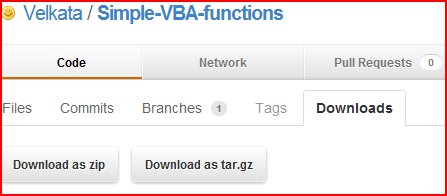
- Download the zip or tar.gz from GitHub: https://github.com/Velkata/Simple-VBA-functions/downloads.
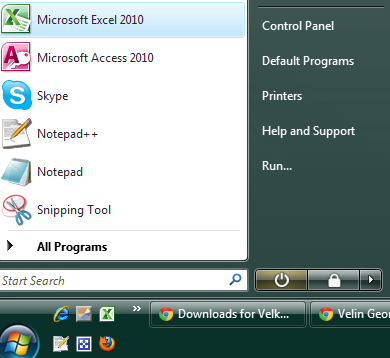
- Open a new excel workbook.
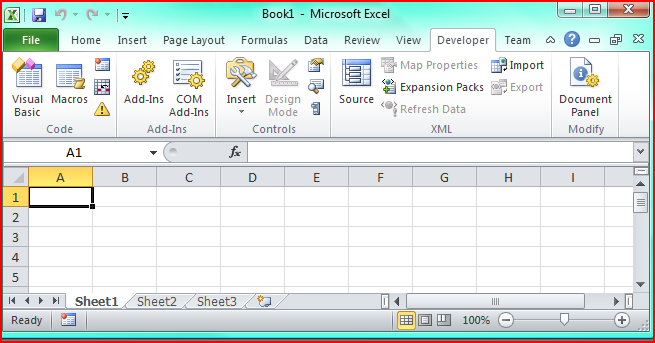
- Use keys Alt+F11 on your keyboard to open the VBA Editor or you may use the developer tab --> Visual Basic editor icon.
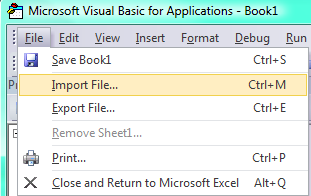
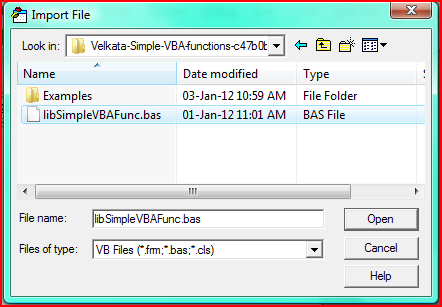
- In the VBA editor go to menu --> File (Alt+F) --> Import File... --> select the downloaded libSimpleVBAFunc.bas
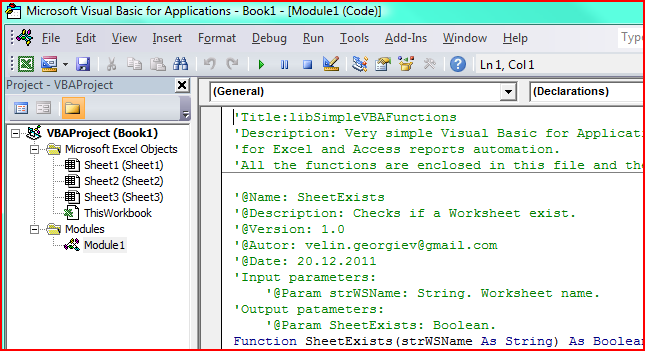
- A new module "Module1" should appear in the project browser.
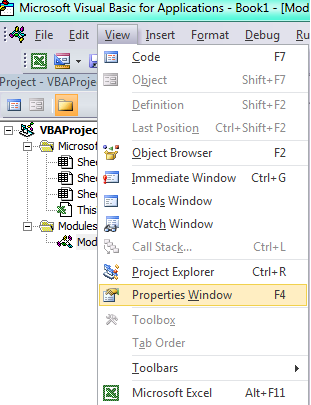
- Select Module1 and go to menu --> View --> Properties Window
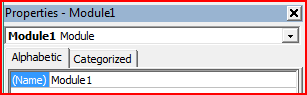
- Then in the properties window rename the module from "Module1" to "SimpleVBAfunctions" for example.
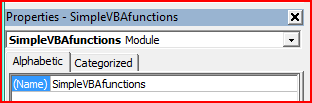
- Insert a new module and rename it to "Main" for example.
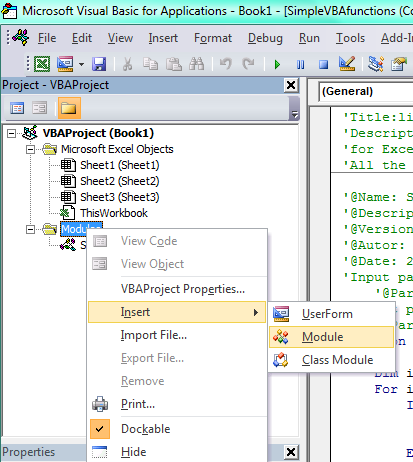
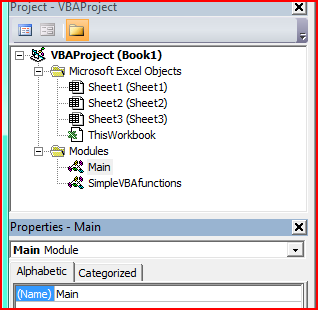
- You are ready to start using the functions from the Simple-VBA-functions. For a quick test a below code can be added to the Main sub and executed.
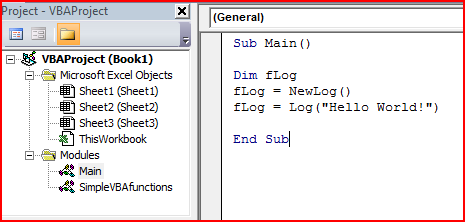
Sub Main() Dim fLog fLog = NewLog() fLog = Log("Hello World!") End Sub
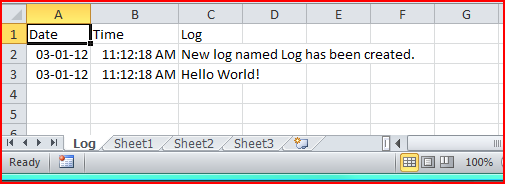
- The function NewLog() creates a new workbook sheet named "Log" with three columns "Date","Time" and "Log"
The function Log("Hello World!") appends the text "Hello World!" to the newly created log.
If you are interested in full excel reporting automation (by using Simple-VBA-functions library and Windows Task Scheduler) you may want to visit my this post:http://velin-georgiev-blog.appspot.com/?id=52001